AiTranslator: translate and improve any text with a single key
AiTranslator: translate and improve any text with a single keystroke
Five AI engines to choose from, 28 languages, microphone dictation and audio playback, on Windows, macOS and Linux, in both x64 and ARM64
Select text anywhere, press F9, it's translated. There you go, you know the software. You can stop reading here if you're in a hurry.
For everyone else: I wrote AiTranslator because I couldn't take the obstacle course anymore. Copy the text, open a tab, paste, wait, copy the result again, go back to my email. And when it wasn't about translating but about making a message a little more presentable, that was yet another tool. Three services for a four-line paragraph, frankly, no.
AiTranslator stays in the system tray and wakes up with a keyboard shortcut. It translates into 28 languages, it rephrases text in its own language, and it lets you choose which AI does the work: OpenAI, Anthropic, Google, xAI, or Ollama running on your own machine without sending anything anywhere.
How it works
You highlight text in whatever application you want: an email, a web page, a document, a conversation. You press F9 (that's the default shortcut, you can change it in the preferences if you already use that key for something else). The window appears with your selection already in it.
Then, two buttons. Translate, you get the idea. Improve, that's the button I use most often: it keeps your language and rewrites the text more clearly, more politely, more professionally. Handy for the email you type at 6:50 p.m. while being vaguely annoyed.
The response appears in streaming, that is, word by word while the model writes, without waiting for it to finish its sentence. On a slightly long paragraph, it changes everything: you read the beginning while the end is being made. One click on Copy and the result goes to the clipboard.
This is what it looks like for me, in dark theme, with an English message translated into French:
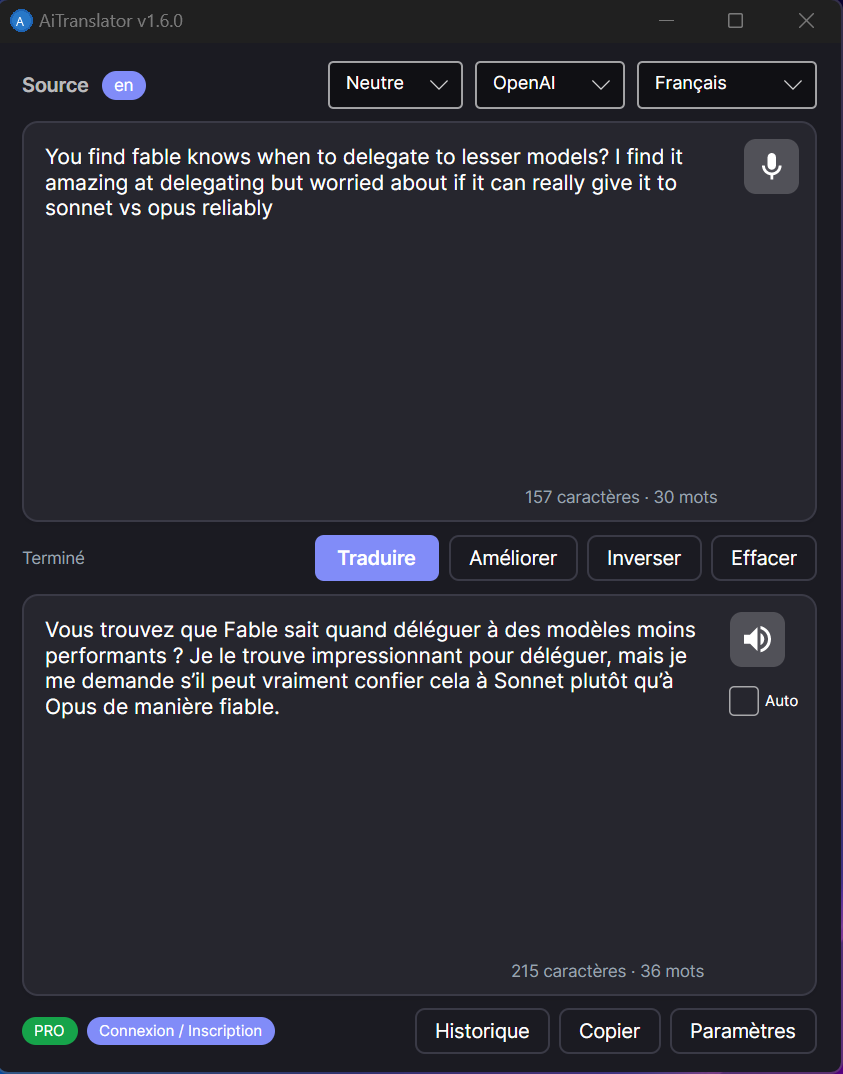
The little blue badge en in the top left is the source language detected by the AI. It has been clickable for a little while now: if detection gets it wrong, with a short text or a mixture of two languages, you impose the right language on it and don't think about it anymore. At the bottom of each area, the character and word counter. On the right, the microphone and speaker, which I talk about just below.
Five AI engines, and you choose
No engine is imposed. You switch from one to another in the drop-down menu of the main window, and each one offers several models, from the fast and cheap one to the more polished one:
- OpenAI:
gpt-4o-miniby default,gpt-4oandgpt-4-turboif you want more finesse. - Claude, from Anthropic:
claude-sonnet-4andclaude-haiku-4-5. - Gemini, from Google:
gemini-2.0-flashandgemini-1.5-pro. - Grok, from xAI:
grok-3andgrok-3-mini. - Ollama: Llama, Mistral, Qwen, Gemma, whatever you have installed.
Ollama deserves a word. It's an AI server that runs on your machine, for free and without an account. No API key to pay for, no data leaving your place, no volume limit. AiTranslator detects it and starts it automatically when you select it as the provider. An old laptop won't work miracles with a big model, but for everyday translation with a medium-sized model, it does the job very well.
What I actually use every day
The rest built up version after version, usually because I needed it myself.
- Translation in both directions. I work in French and English all day, and I was constantly changing the target language. Now I never change it anymore: an English text goes into French, a French text goes into English, and a Spanish text goes into my usual language. The second language in the pair is chosen in Preferences, and a small badge displays the language actually selected when it differs from the one I chose.
- The result already in the clipboard. Since 1.7.0, the completed translation lands there all by itself. Concretely, I select,
F9, go back to my email,Ctrl+V. That's it. Before, I still had to click Copy, and I forgot it one time out of two. You can uncheck it in Preferences if it bothers you. - Dictation through the microphone. One click on the microphone, you speak, your voice is transcribed by Whisper (OpenAI's speech recognition model) and the text lands in the source area, ready to be translated. To dictate three sentences to translate in a meeting, it's noticeably faster than typing them.
- Audio playback. The speaker reads the translation out loud, with a real synthetic voice and not the 2004 robot. The Auto checkbox starts playback all by itself after each translation. And since version 1.6.3, listening again to a translation that has already been played is instant and doesn't charge you again: the audio is kept in memory.
- The tone. Neutral, Formal, Casual, Technical or Literary. The same text doesn't come out the same way depending on the slider, and it also works in Improve mode, not just in translation.
- The glossary. You impose your own translations for your in-house terms, your product names, your business jargon. The AI respects them instead of reinventing a different word on every call.
- History. The last 200 translations, with an instant search. You reload an old translation with one click, copy it, delete it.
- The cache. The last 300 translations remain in memory. The same text translated twice doesn't call the API again: immediate result, and not a cent spent. In the same spirit, in 1.7.0 I fixed an annoying flaw that I had eventually noticed: a single press on the shortcut sometimes triggered two complete translations, so twice the bill. Only one call is sent now, and the display no longer starts over from zero halfway through.
- The theme. Light, dark, or automatic according to your system setting.
- Your API keys stay with you. They are encrypted locally, by DPAPI on Windows (the system's vault, linked to your user account) and with AES-256 on macOS and Linux. Nothing goes to the cloud apart from the text you ask to translate.
- A backup in
.jsonl(a text file with one translation per line), with automatic rotation, to find what has gone through the application. - The system tray. The application folds into the tray and can launch at startup. It waits for its shortcut without cluttering up your screen with a window.
An honest clarification about audio: the microphone and reading aloud work on Windows and macOS. On Linux, it's not hooked up yet, it's on my list. Everything else works on all three systems. And since transcription and voice go through OpenAI's audio models, these two features require an OpenAI key even if you usually translate with Claude or Gemini.
As for languages: 28 translation languages, from French to Hindi via Arabic, Japanese, Ukrainian and Vietnamese. The interface itself is translated into 29 languages, so there's a strong chance it speaks yours.
Installation, three minutes flat
Download the archive that corresponds to your system at the bottom of this page, and unzip it wherever you want, for example in C:\AiTranslator\ on Windows or in /Applications/AiTranslator/ on Mac.
On Linux and macOS, remember to make the binary executable before the first launch:
chmod +x AiTranslator
./AiTranslator
Launch the application, open Preferences, and paste the API key from the provider of your choice. Or select Ollama and don't paste any key at all. Then, select some text somewhere, F9, and off you go.
Free trial and license
30 days of free trial, all features included.
Download AiTranslator and enjoy 30 full days without any restrictions. Test all AI providers, all languages, all features. No bank card required.
After the trial period, continue using AiTranslator with a “One for All” subscription, a single license that gives you access to all our products. One subscription, all the tools.
The online version is 1.7.1, available in six versions: Windows x64 and ARM64, Linux x64 and ARM64, macOS Intel and macOS Apple Silicon. If you have a recent laptop with a Snapdragon processor, or a Raspberry Pi, the ARM64 version is the one you need. This 1.7.1 takes care of two annoyances I experienced myself: Ollama not starting on its own, and the shortcut sometimes staying silent when another application had hold of the clipboard. The details of what changed can be found in the release notes, just below the download buttons.
Join the conversation
You need an account to comment on this article. Creating one is free and takes under a minute.
No comments yet.