Making a Backup with XXCOPY
XXCopy is not XCopy, a command provided with Windows, XXCopy is the luxury XCopy, it will allow you to make perfect backups!
Why XXCopy?
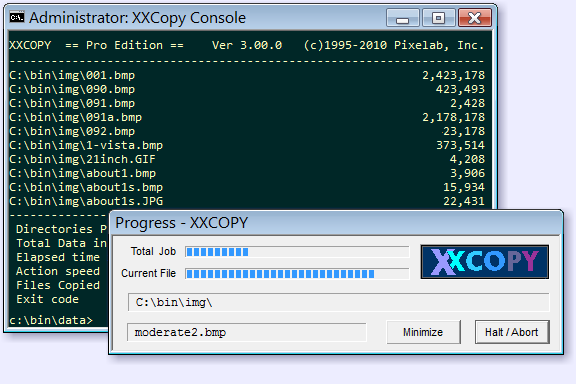
XXCopy was created by the company Pixelab which unfortunately has ceased its activities. XXCopy is downloadable from their site: http://www.xxcopy.com but also from my site here because it would be unfortunate if the site closed and we couldn't find it anymore.
It is a little gem of excellence, allowing you to make a perfect copy of your data on a USB hard drive for example. (Don't forget to make regular backups: see my other article here)
Not only does it make a perfect copy of your data, but it can resume where it left off by copying the most recent files. Let me explain: sometimes, we don't need to copy everything entirely, we just want it to copy the updated files but also the new files, which will take significantly less time.
After installing XXCopy, go to the XXCopy directory, enter the 32bit or 64bit directory if you have a 64-bit Windows and open a command prompt by typing 'cmd' in the bar above the file explorer:
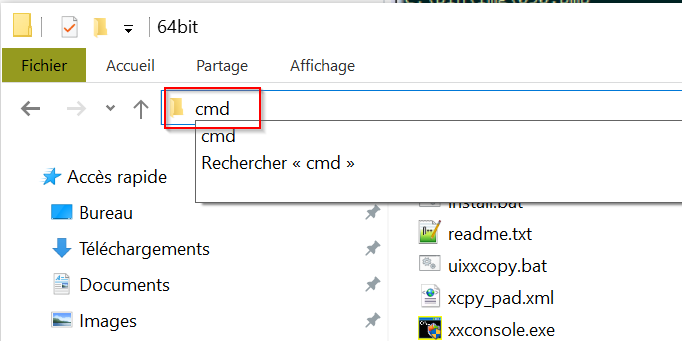
Then press the ENTER key
A Windows command window opens:
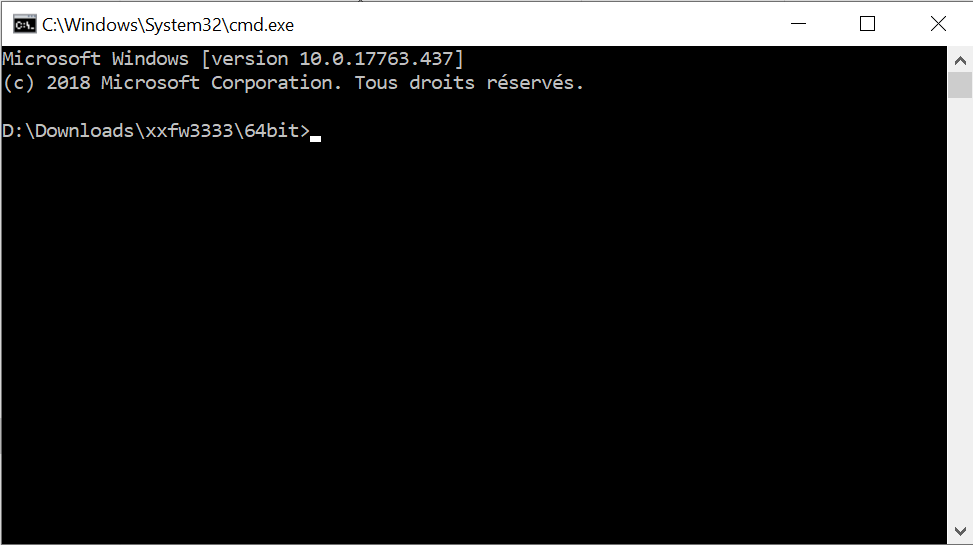
Type "install.bat"
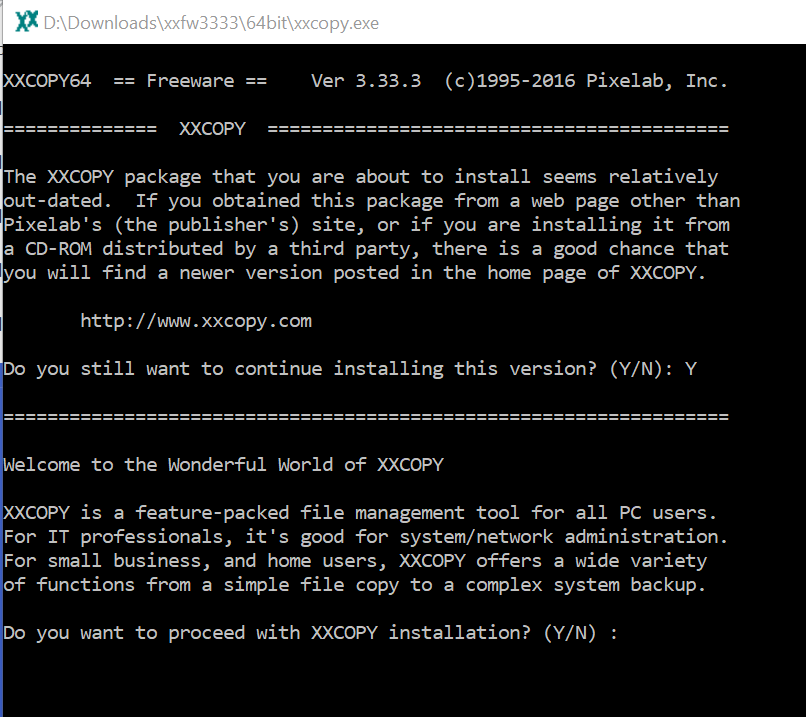
A window opens again, type "Y" to all questions (Y means YES), to accept the license and installation. Once everything is installed, the window will close and you will find yourself back at your Windows command prompt. Close this window as well.
Now let's open a new Windows command window but this time with Administrator rights, otherwise XXCopy will not execute:
A little trick:
- Press the Windows (or Flag) + R key
- Type CMD inside
- Then instead of pressing the ENTER key, press CTRL + SHIFT + ENTER
- A new command window opens with Administrator rights this time!
You will see the word 'Administrator' above
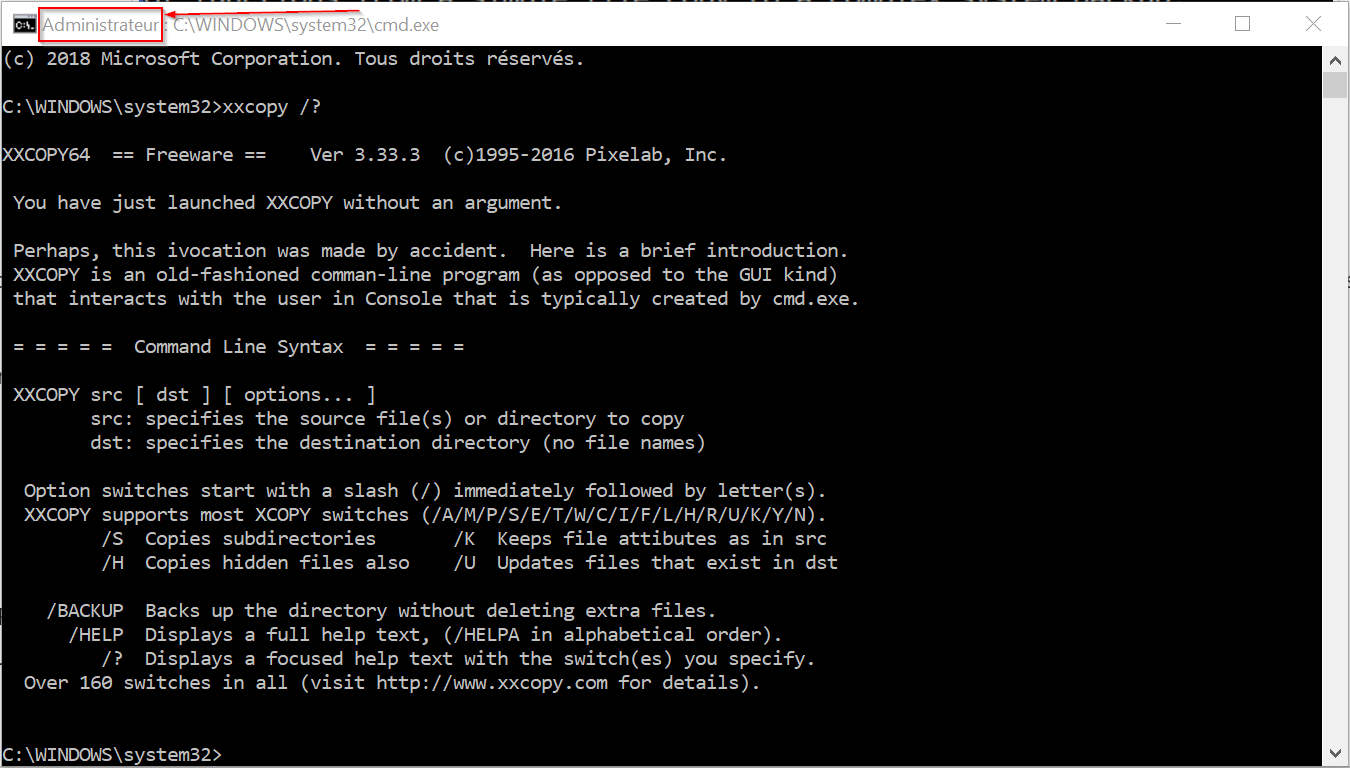
Type: XXCOPY /?, normally you should see this in the image, which means XXCopy is well installed and everything works!
How to use XXCopy?
The first command is quite simple:
XXCOPY source [ destination ]Then XXCopy uses optional parameters:
XXCOPY source [ destination ] [ parameters ]What are the parameters?
There are tons of them, but we will look at the most interesting ones. If you type this, you will see all the parameters:
XXCOPY /HELPIf you type this, you synchronize your files from one directory to another:
XCOPY C:/SOURCE D:/DESTINATION /E /D /C /Y- The /E parameter means that you want to copy all files in the source directory and all subdirectories as well (otherwise it only takes the files in the first directory and not the subdirectories)
- The /D parameter means that it will perform a date comparison, if the file in the destination already exists and is the same date, it will not copy the file. Very interesting when you need to synchronize the same directory multiple times when you don't want to copy all the files each time.
- The /C parameter means that XXCopy will continue even if there are errors, for example, read-only files will be ignored.
- The /Y parameter means that XXCopy will not ask you at each file copy if it can copy this file, with this parameter you specify YES to everything.
Here for the example, I executed the same command twice and see what it displays.
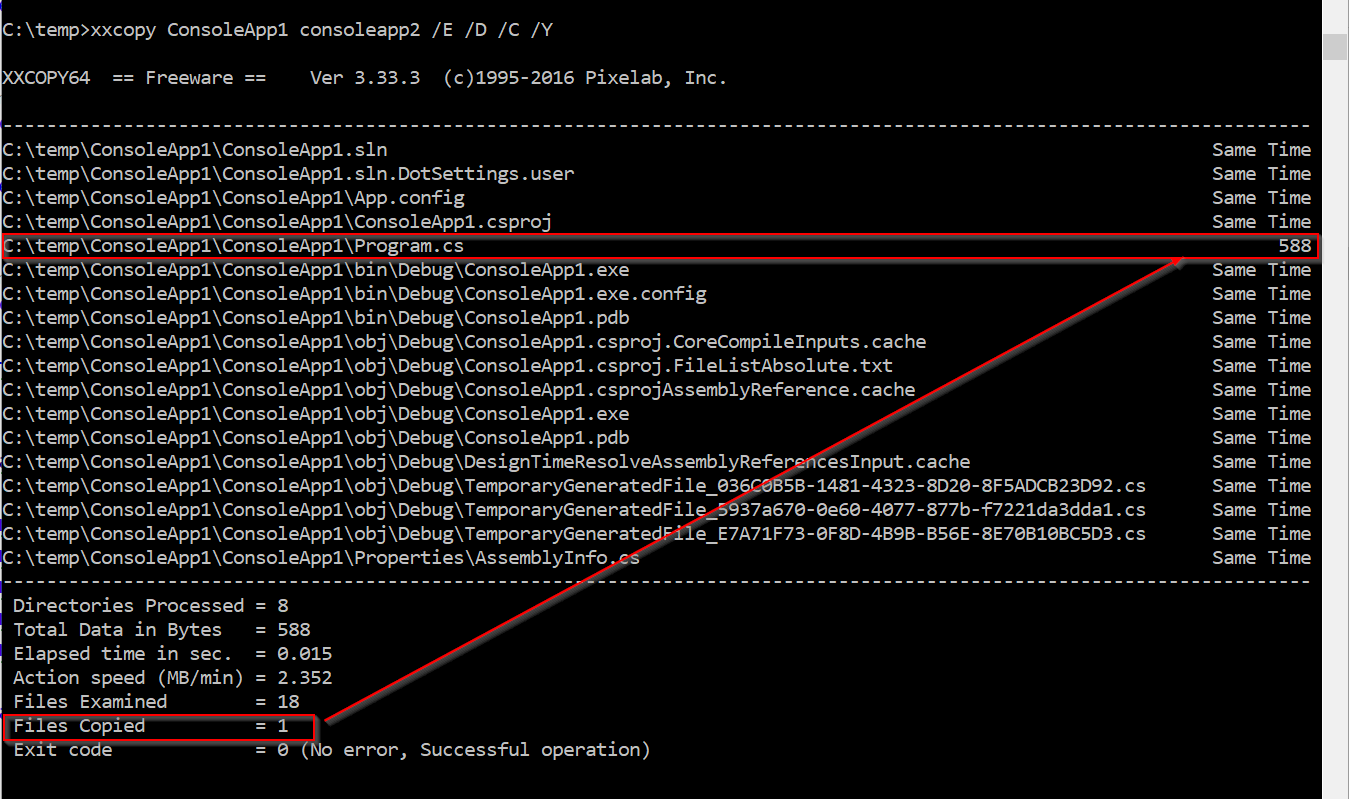
It copied only one file on the second execution because I had previously modified that file, it compared the date and saw that it was more recent, so it copied it.
It's your turn to play a bit with XXCopy and read the documentation here: http://www.xxcopy.com/xcpytbul.htm
The most interesting are these commands:
/BACKUP  which is a shortcut for /KS/H/E/R/Q/Y/BI/ZE/oD0 : good for making a backup
/CLONE  which is a shortcut for /KS/H/E/R/Q/Y/BI/ZE/oD0/ZY : good for making an exact clone copy
Join the conversation
You need an account to comment on this article. Creating one is free and takes under a minute.
No comments yet.