Unblocking the Microphone in Google Chrome Using the Flash Plugin
Sometimes the Flash plugin is still used on some old sites, as you know the Flash plugin is blocked almost everywhere now, due to security vulnerabilities, except for Microsoft's Internet Explorer which is less strict. For some sites, it is sometimes necessary to enable Flash and the Microphone.
How to force the microphone (input) and audio (output) to open on Google Chrome for Flash?
First, go to your site where Adobe Flash is requested, you should see a logo at the bottom of the screen in your Google Chrome browser:
Click on it, Google Chrome will then ask you for permission to enable Adobe Flash, if you do not see this window click on the little i next to the URL
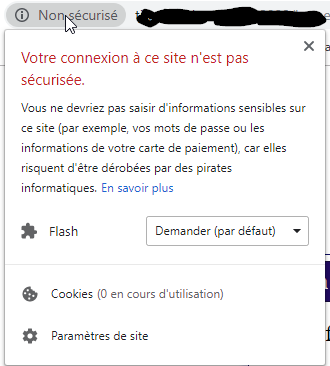
Allow Flash
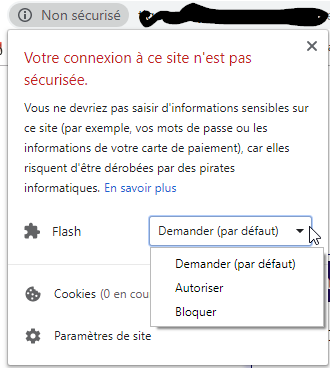
There you go for Adobe Flash, it is enabled, however the Microphone will still be blocked
Let's enable the Microphone!
In Adobe Flash if you see an empty list under Microphone, it means that you do not have a microphone or that the microphone is not permitted, if you are sure you have a working microphone on your Mac or PC, it means that Google Chrome is blocking it.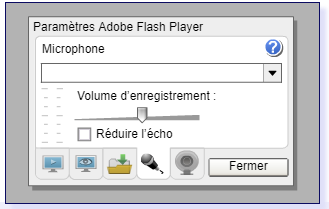
- Then open Google Chrome if you haven't already
- Type this in the URL: chrome://flags/#unsafely-treat-insecure-origin-as-secure
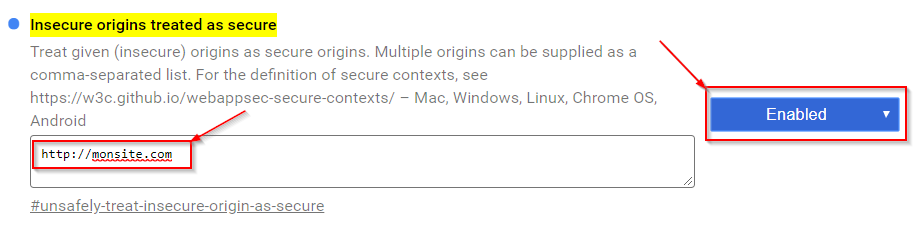
- Type in the box the site from which you want to open sound and the microphone, here I put an example http://monsite.com, make sure to type your site and if the site uses a port like: http://monsite.com:2080, type the port as well, you need to be precise!
- The button must be set to "Enabled"
- Google Chrome will ask you to restart Chrome, accept or restart manually
- Now go to your site: http://monsite.com or http://monsite.com:2080
- Click again on the little i next to the URL
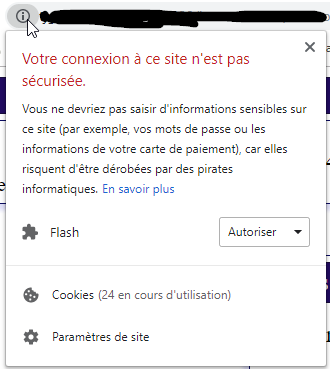
- Click at the bottom on "Site settings"
- A new window will offer you several options:
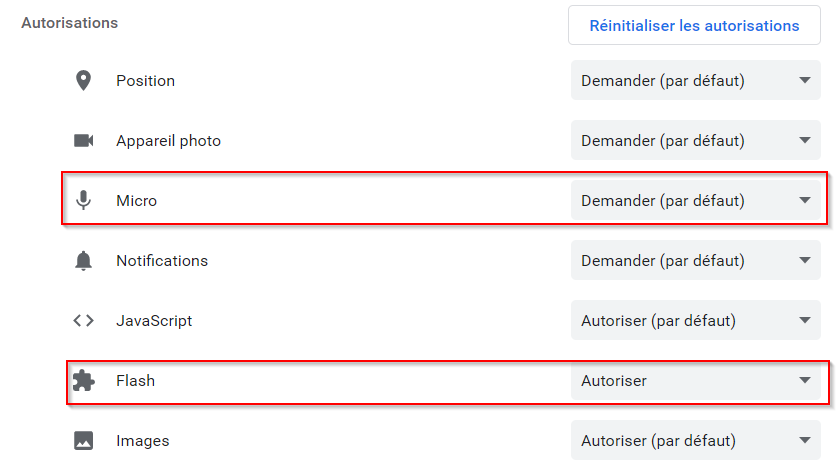
- Enable the Microphone on "Allow" and Flash should also be set to "Allow"
- Close this window (here with the settings, not Google Chrome)
- Go back to your site and you will see this appear:

- Click on the "Refresh" button
- And there you go, your site will now accept Flash and the Microphone!
There you go, this site will now be accepted by Google Chrome as an unsecured site and will allow sound input and output, if you click on the little i again, you will see that the Microphone is enabled
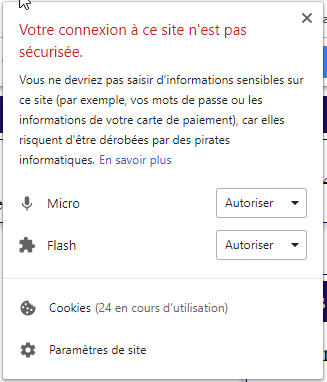
Warning! This manipulation must be done every time you want to use the Microphone on this site! Google Chrome does not allow saving this change. Grrr....
Shorter version!
Create a shortcut on your desktop for this command:
"C:\Program Files (x86)\Google\Chrome\Application\chrome.exe" --user-data-dir=C:\ChromeTempFiles --unsafely-treat-insecure-origin-as-secure="http://monsite.com"Make sure to change http://monsite.com to your site (and don't forget the port if you are using a port)
Then configure by clicking on the little i next to the URL, under the "Site settings" menu to open the Microphone and Flash
Join the conversation
You need an account to comment on this article. Creating one is free and takes under a minute.
No comments yet.