AiDeclic: my ultra-fast screenshot tool written in Rust, with integrated AI, enters beta
I needed a screenshot tool that would never make me wait. I wrote it. It's called AiDeclic, it's free, and its first beta is available for Windows, Linux, and macOS.
Pressing Print Screen and waiting half a second for the tool to wake up had been annoying me for years. Half a second doesn't sound like much. Except when you take fifty screenshots a day for documentation, tickets, or messages to a colleague. So I looked at the problem backwards: a tiny program, written for speed from the very first line, that lives in the system tray and responds right away.
Result: the selection overlay appears in about 36 milliseconds on my test machine. For comparison, a blink takes 100 to 150 milliseconds. You see where I'm going with this?
Why Rust, and why it changes everything
AiDeclic is written in Rust, a compiled language (the code is translated once and for all into processor instructions, without a virtual machine or browser engine to load). The interface runs with egui, drawn directly by the graphics card. No Electron, no Chromium hidden away somewhere: the Windows archive weighs less than 10 MB, and it's a single file AiDeclic.exe that you can run without installing anything.
I spent quite a few evenings hunting down milliseconds, and I have to say I got a certain amount of pleasure from watching the numbers melt away. A few examples measured on the current version: splitting a screenshot went from 3.4 ms to 0.5 ms, a radius 40 blur on a 4K image went from 2.5 seconds to 66 ms (all the processor cores work at the same time), and PDF export went from 563 ms to 89 ms. The interface never freezes: saving the file and copying it to the clipboard each run on their own thread.
What it can do
Here's the home screen on my machine, in dark mode. Four big buttons, one for each way of capturing, with the keyboard shortcut written on them so you don't have to look for it.
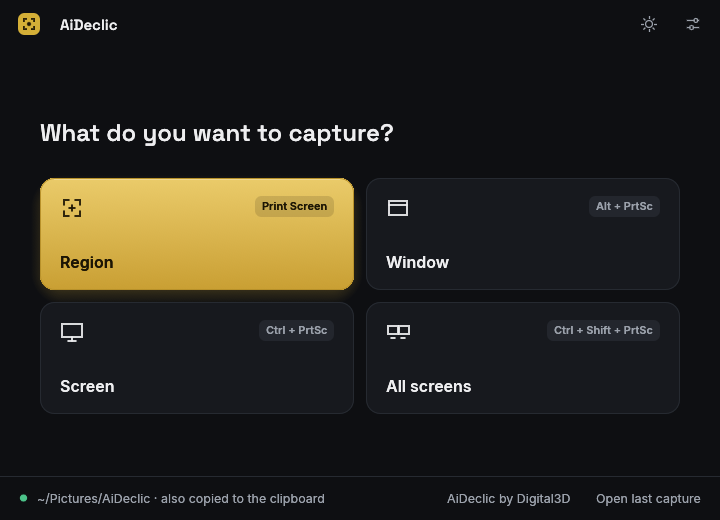
AiDeclic's home screen: Zone, Window, Screen, and All screens, each with its shortcut.
Zone mode displays a horizontal and vertical crosshair accurate to the pixel, with a magnifying glass that follows the mouse. You draw, adjust with the handles, and confirm. Window mode frames the window under the cursor and a click captures it. Screen mode does the same when you have multiple monitors. And All screens puts the entire desktop into a single image.
The default shortcuts are the ones we already have at our fingertips: Impr. écran for a zone, Alt + Impr. écran for a window, Ctrl + Impr. écran for a screen, Ctrl + Maj + Impr. écran for all screens, and Maj + Impr. écran to capture exactly the same area as the previous screenshot. Everything can be changed in the preferences.
Each screenshot goes to two places at the same time: a file in the Images/AiDeclic folder and a copy in the clipboard, ready to be pasted. Then the viewer opens with everything needed to annotate: rectangles, ellipses, arrows, lines, freehand strokes, text, speech bubbles, numbered markers, highlighter, blur and pixelation to hide what needs hiding, cropping. You can also export as a PDF or print directly.
And a little option I love: “Start hidden in the system tray”. The tool launches with the session, shows no window, and waits patiently for you to press Print Screen.
AI directly in the viewer
This is where it really gets interesting. The viewer has an AI column: you ask a question about the capture, and the answer appears next to the image. A few uses I already use every day:
Extract text from a capture (handy for an error displayed in a dialog box that you can't select), explain an error message and suggest a fix, translate what you see, turn a table into CSV, write a bug report, suggest a meaningful filename, write alternative text for accessibility. And the cleverest part: automatic redaction. The AI spots sensitive areas (email address, number, key) and AiDeclic blurs them in the image before you send it to anyone.
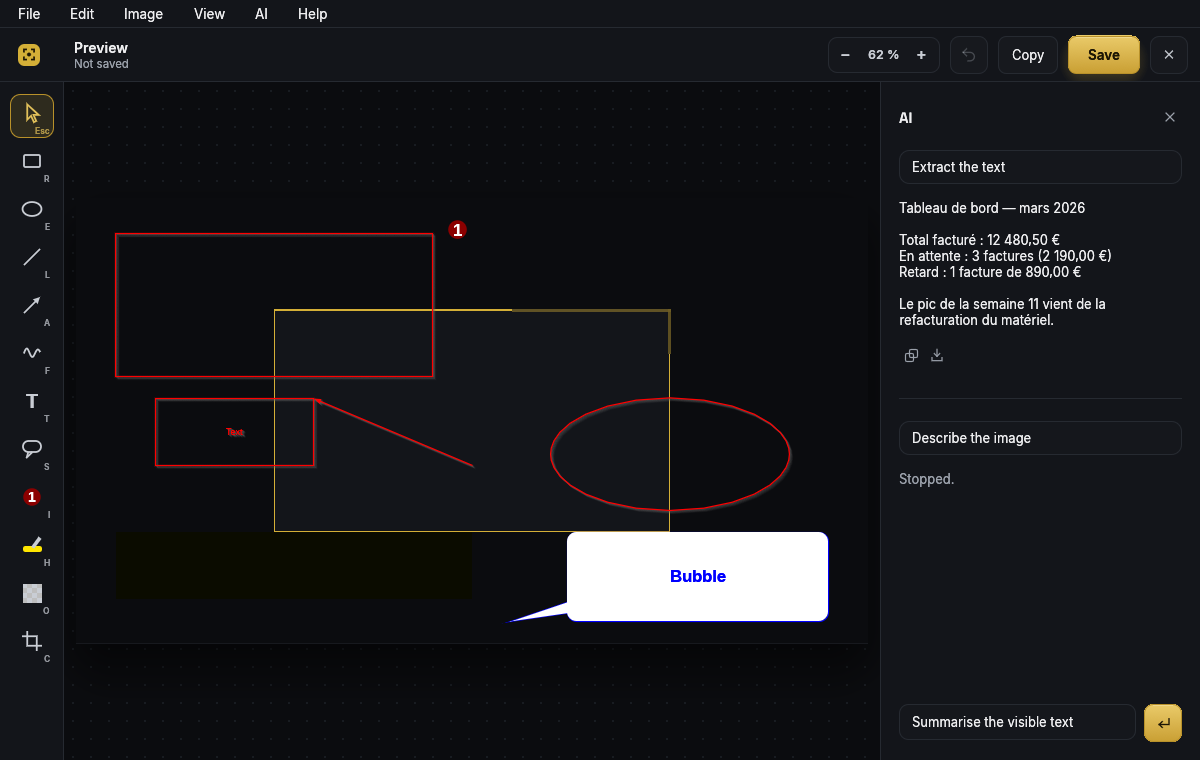
The AI column: each answer has its Copy and Save icons, and the gold button sends the question.
The send button becomes a Stop button while the AI is thinking, just in case it drags its feet. Under each answer, two small icons let you copy it or save it to a file.
As for providers, you have a choice: OpenAI, Anthropic, Google Gemini, Mistral, DeepSeek, Grok, GLM, OpenRouter, or any service compatible with the OpenAI API. And for the more cautious, Ollama locally: your captures then never leave your machine.
Okay, let's be serious about privacy for two minutes. A screenshot can contain anything. So AiDeclic never sends it without your consent: the first time, it explicitly asks whether you agree to send images to the chosen provider, and it tells you which one and at what address. Your API key is stored in the system keychain (the Windows, macOS or Linux password vault), never in a plain-text file. And it refuses to send a key to an unencrypted address outside your machine.
The 0.4 beta, for Windows, Linux and macOS
This is a first beta version. It runs every day on my machine, it passes more than 380 automated tests on every build, but I obviously couldn't try every configuration in the world. If something gets stuck, tell me in the comments, I read everything. The files for each system are available for download at the bottom of this page, with the release notes: a single executable under Windows (AiDeclic.exe, with no installation), a single executable in the Linux archive, and a signed and notarized application for Intel and Apple Silicon Macs.
A few details to help you get started. Under Windows 11, the Snipping Tool sometimes keeps the Print Screen key for itself: AiDeclic detects it and offers to reclaim it with one click. Under macOS, you need to allow "Screen Recording" in the privacy settings on first launch. Under Wayland, the system doesn't let an application take global shortcuts: you declare them in the desktop's keyboard settings with a command like this.
AiDeclic --capture regionThe interface speaks 29 languages and chooses the one from your system. Dark or light theme, your choice, with its gold buttons.
What I think of it
Personally, I'm not going back. The fact that the tool responds before I've even finished pressing the key, it really changes the way you work: you capture without thinking about it. And the AI column saves me from copying error messages by hand or blurring email addresses one by one before sending a capture to someone.
It's still a beta, and I prefer to say it clearly: there will be bugs, especially on exotic configurations (multiple screens with different scaling, slightly unusual Linux desktops). Test it, break it, and tell me what's wrong. That's how it will become really good.
Join the conversation
You need an account to comment on this article. Creating one is free and takes under a minute.
No comments yet.