AiSrt: Translate, Extract, and Transcribe Your Subtitles (Update)
AiSrt: Translate, Extract, and Transcribe Your Subtitles with Artificial Intelligence
A free tool to make videos accessible in 29 languages, for the deaf, hard of hearing, and all multilingual content enthusiasts
You have a video with English subtitles and you want them in French, Spanish, Arabic, or Japanese? Or a movie without any subtitles, from which you would like to extract an .srt? That's exactly why I created AiSrt.
AiSrt is a command-line tool that relies on AI to translate your subtitle files .srt, extract the tracks already embedded in your video files, and transcribe the audio from a video directly into subtitles. All three in the same binary.
For translation, you have the choice of five engines. The APIs from OpenAI, Anthropic (Claude), Google (Gemini), and xAI (Grok) cost a few cents per movie. Or a server Ollama running on your own machine: free, offline, no key, no account. Your subtitles do not leave your hard drive.
And if the video contains no subtitles, AiSrt uses Whisper, OpenAI's speech recognition model, which transforms the audio track into a .srt by itself. Honestly, the first time I saw a one-hour conference come out subtitled without me typing a single line, it moved me.
New in this version: Blu-ray subtitles, which are not text but images, can now also be read. AiSrt decodes them, passes them to a character recognition engine, and then has the result reviewed by AI. I will come back to this later; it's the part I'm most proud of.
Why AiSrt?
- Accessibility first. Deaf and hard of hearing individuals deserve easy access to video content. Generating and translating subtitles should take a few minutes, not an evening.
- 29 languages. Arabic, German, English, Chinese, Korean, Danish, Spanish, Finnish, French, Greek, Hindi, Hebrew, Hungarian, Indonesian, Italian, Japanese, Malay, Dutch, Norwegian, Polish, Portuguese, Romanian, Russian, Swedish, Czech, Thai, Turkish, Ukrainian, and Vietnamese.
- A translation that understands context. That's the whole difference with a word-for-word translator: idiomatic expressions, humor, and puns come across much better.
- Three functions in one tool: translation, extraction, transcription.
- Even subtitles that are images. The PGS tracks from Blu-rays are read by character recognition, then reviewed by AI to correct what the OCR misread.
- Five translation engines to choose from. OpenAI, Claude, Gemini, Grok, or Ollama, with your own key, changeable to an option.
- Free and offline if you want. With Ollama installed on your machine, translation costs nothing, requires no key, and sends nothing anywhere. Convenient for content you don't want to pass through a third-party service.
- Nothing to install alongside. The binary is standalone; there is no .NET runtime to download; everything is included. And ffmpeg and whisper.cpp are automatically retrieved on Windows and Linux when needed.
- NVIDIA acceleration on Windows. If AiSrt detects your graphics card, it switches to the CUDA version of whisper, and transcription goes significantly faster.
Installation
Prerequisites
Nothing mandatory, actually. Extraction and transcription run without a key, account, or sending anything anywhere.
For translation, you need a key from one of the four paid services (OpenAI, Anthropic, Google, or xAI), or Ollama installed on your machine, which is free and offline. The next two sections explain each; take the one that suits you.
Only one case requires an additional tool: subtitles that are images. You will need Tesseract, which you install yourself. One command, and it's set up for good.
No runtime to install: each archive contains a standalone executable for your system.
- Download the archive that corresponds to your machine below: Windows x64, Linux x64, or macOS (Apple Silicon M1 to M4, or Intel x64).
- Unzip it in the folder of your choice.
- Optional: add this folder to your
PATHenvironment variable to callaisrtfrom any terminal.
On macOS, if the system refuses to launch the binary, open the Terminal in the folder and run chmod +x aisrt, then xattr -cr aisrt. macOS builds are signed and notarized, so in principle, you should not need this.
An API key, from the service of your choice
Once again: this is only for translation.
- Go to platform.openai.com and create an account, or log in.
- Go to API Keys from your profile menu, at the top right.
- Click on Create new secret key.
- Give it a name, AiSrt for example, and confirm.
- Copy the key right away, it will never be displayed again.
- Paste it into
appsettings.json, in place of"OPENAI_KEY":
{
  "OpenAI": {
    "ApiKey": "sk-your-api-key-here",
    "Model": "gpt-5-mini",
    "Temperature": 1
  }
}
This file is located next to the executable. Once AiSrt is installed, it is read from %LOCALAPPDATA%\AiSrt\appsettings.json on Windows, and from ~/.config/aisrt/appsettings.json on Linux and macOS.
Tip: you can also keep the key in a separate .env file. Set "UseSecretEnvFile": true in appsettings.json, specify the path to the file, and write the line OPENAI_KEY=sk-your-api-key-here inside it. That's what I do at home, it avoids carrying your key in a configuration file that you share thoughtlessly.
The cost: OpenAI charges per usage, and a subtitle consumes very little. Expect to spend a few cents for an entire movie with gpt-5-mini.
And if you prefer Claude, Gemini, or Grok
Since this version, OpenAI is no longer the only paid service. Three others do exactly the same work, with your own key: Anthropic for Claude, Google AI Studio for Gemini, and xAI for Grok. The process is the same everywhere: you create an account, generate a key, and paste it into appsettings.json.
Each service has its own section, with its default model already filled in:
{
  "Translation": { "Provider": "anthropic" },
  "Anthropic": { "ApiKey": "sk-ant-your-key", "Model": "claude-haiku-4-5" },
  "Gemini":    { "ApiKey": "your-key",        "Model": "gemini-3.6-flash" },
  "Xai":       { "ApiKey": "xai-your-key",    "Model": "grok-4.5" }
}
And to try a service without touching the file, there is the option --provider:
aisrt "film.srt" -t fr --provider anthropic
aisrt "film.srt" -t fr --provider gemini
aisrt "film.srt" -t fr --provider grok
Common names are accepted, so claude, google, grok and gpt work just as well as the official names. I added them because I was getting it wrong one time out of two.
A detail that cost me an evening: each service accepts two names for the environment variable for its key, for example ANTHROPIC_API_KEY or CLAUDE_API_KEY. I had filled my .env file with the model name and not the company name, and AiSrt was politely explaining to me that my key was missing. It was there, under a name it wasn't looking at.
One last thing, and it applies to all four: if the key is wrong, if the account is empty, or if the model does not exist, AiSrt will tell you before starting, naming the line in the configuration file to correct. No more crashing in the middle of a half-translated movie.
Or: translate for free, at home, with Ollama
Don't want to create an OpenAI account, or don't want your files to go to a third party? Install Ollama, which runs a language model directly on your machine. It's free, unlimited, and works without an internet connection once the model is downloaded.
Three steps:
# 1. Install Ollama from ollama.com, then start the server
ollama serve

# 2. Download the default book model
ollama pull gpt-oss:20b

# 3. Translate, locally
aisrt "film.srt" -t fr --provider ollama
The --provider option applies to the current command. If you want Ollama to become your default engine, put "Provider": "ollama" in the Translation section of appsettings.json, and you won't have to think about it again.
Which model to choose? I tested several and the results surprised me. A local model must adhere to a very strict output format, translating block by block sent in order, without comments. Some can't do it at all: qwen2.5 slipped in comments in Chinese in the middle of the subtitles, three times out of three, even when throttled to the maximum. It's unusable. llama3.1:8b performs very well and is about ten times faster. gpt-oss:20b is the one I deliver by default, because it never lost a single block during my tests, but it is significantly heavier (about 14 GB) and slower.
Let's be honest about the trade-off: locally, it's free but slow, and the quality remains below what gpt-5-mini produces. For a movie you're watching tonight, the OpenAI API at three cents is more convenient. For processing an entire season without watching the counter, or for sensitive content, Ollama becomes interesting.
One thing that wasted my time and that I'll spare you: AiSrt talks to Ollama through its native API and imposes a sufficient context window. If you go through Ollama's OpenAI compatibility layer, this setting is ignored, the model truncates its response without saying so, and you end up with missing blocks in the final file. It's managed for you, but it explains why the batches are smaller locally (10 blocks instead of 40).
What happens before it goes out
Two checks run at startup, and they saved me a lot of frustration.
The first one looks at the file you provide. If you type aisrt film.mkv without the option, AiSrt will respond that it is a video and will indicate --extract or --transcribe. Previously, it read the binary file as text and sent it as is to the AI, which responded with an incomprehensible error about the request size. By the way, if you give it a subtitle that is not a .srt (like .ass, .vtt, .sub), it converts it automatically with ffmpeg and proceeds to the translation.
The second one checks that the translation engine responds before sending anything. Invalid key, account without credit, Ollama server not started, model not downloaded: each case has its message and its repair command. Nothing is worse than starting the extraction of six tracks, going to have a coffee, and finding six identical errors upon return.
Usage Guide
General Syntax
aisrt [<file>] [options]All Options
| Option | Description | Default value |
|---|---|---|
<file> | Path to the .srt file to translate, or the video file with --extract and --transcribe | none |
-t, --target <code> | Target language code | fr |
-s, --source <code> | Source language code | en |
--languages | Displays the 29 languages and their codes | none |
--streams | Lists the subtitle tracks of a video, without extracting anything | none |
--extract | Extracts the subtitle tracks from a video, in interactive selection. Image tracks are read by OCR | none |
--transcribe | Transcribes the audio of a video into .srt with whisper.cpp | none |
-p, --provider <name> | Translation engine: openai, anthropic, gemini, xai or ollama | that of appsettings.json |
--stream <n|all> | With --extract: the track to extract, without going through the menu | none |
-tt, --translate-to <code> | With --extract or --transcribe: translates the result without asking anything | none |
-m, --model <name> | With --transcribe: the whisper model, without going through the menu | none |
-al, --audio-language <code> | With --transcribe: the spoken language in the video | detected by whisper |
-ni, --non-interactive | Does not ask any questions, applies default values | none |
--version | Displays the version | none |
-h, --help | Displays help | none |
Be careful not to confuse --streams in plural, which simply lists the tracks, and --stream in singular, which chooses one to extract. One letter difference, two very different effects. I hesitated to rename, but no: the two names are the ones that come naturally.
1. Translate subtitles
The main function, and the one I use the most:
# Translate from English to French (default behavior)
aisrt "film.srt"

# Translate from English to Spanish
aisrt "film.srt" -s en -t es

# Translate from French to Japanese
aisrt "film.fr.srt" -s fr -t ja
The translated file takes the code of the target language in its name: film.fr.srt, film.es.srt, and so on. The previous output file, if it already exists, is copied as .bak.srt before being rewritten.
The translation starts in batches of 40 blocks, and each batch is written to disk as soon as it returns. Here’s what it looks like on my end for a full movie:
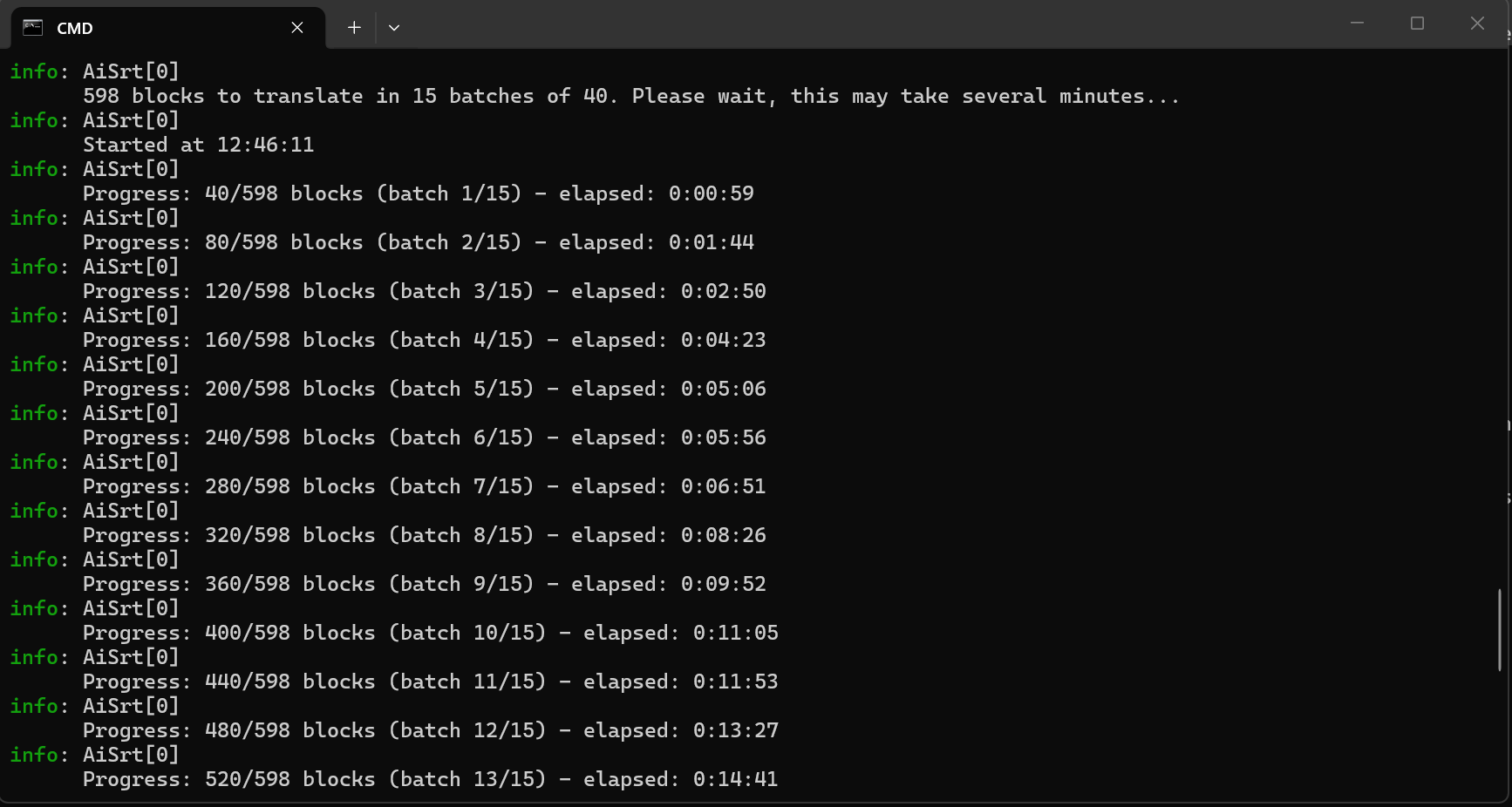
598 blocks cut into 15 batches, and you can see the time accumulating on the right: about a minute per batch, just under fifteen minutes for the entire movie. If it cuts off at batch 13, restarting the same command resumes from batch 13.
2. List the tracks of a video
Before extracting, we can see what is in the file:
aisrt --streams "film.mkv"You get a table with the stream number, language, codec, and type of each track, text or bitmap.
3. Extract subtitles from a video
Many MKV and MP4 files already include subtitles. It’s better to retrieve them rather than recreate them:
aisrt --extract "film.mkv"A menu lets you choose a track, or extract everything at once. Text formats are supported (SRT, ASS, SSA, WebVTT, mov_text). PGS tracks, those from Blu-ray, are images: they are now read by character recognition, and the next section is dedicated to that. Those from DVDs and TNT are not yet decoded, but AiSrt clearly tells you instead of skipping them silently. Once the extraction is finished, it offers to translate each track in the process, with the track language as the source language.
Note: ffmpeg is automatically downloaded on Windows and Linux if it is not already on your machine. On macOS, install it with brew install ffmpeg.
4. Transcribe audio to subtitles
No subtitles at all in the video? We create them, with whisper.cpp:
aisrt --transcribe "film.mkv"On the first launch, AiSrt asks you which speech recognition model to use:
- base.en, about 150 MB: fast, accurate for well-articulated English
- small.en, about 500 MB: the right compromise
- medium.en, about 1.5 GB: more accurate, slower
- base, small, medium: the same sizes, but multilingual
- large-v3, about 3 GB: the most accurate, multilingual, and the slowest
You can skip this menu with --model if you already know what you want.
Transcribe something other than English
Previously, AiSrt assumed you were giving it English. This was a very bad idea: a speech in French would come out as approximate English subtitles, without a word of warning, and if you followed up with a translation, you would get French retranslated from that English. A game of telephone with your own videos.
Now, whisper detects the spoken language and AiSrt reads its response on the fly. You have nothing to declare, and the produced file carries the correct language code. You can still enforce it if you know what you're doing, with a multilingual model:
aisrt --transcribe "film.mkv" --audio-language fr --model baseThe produced file is then named film.fr.srt, and if you follow up with a translation, AiSrt knows that the starting point is French.
A trap I pondered for a moment: models whose names end with .en are trained on English only. Give them French audio and they don’t complain, they return English phonetics with complete confidence. This is the kind of result that you only spot by reading the file. AiSrt therefore refuses the combination before launching anything, and gives you the list of suitable models.
On Windows and Linux, AiSrt downloads whisper by itself. On Windows, it also detects an NVIDIA card and takes the CUDA version, which is much faster.
On macOS, you need to take an extra step. The whisper.cpp project does not publish a command-line executable online, only a framework for Apple developers: there is therefore nothing to download automatically. The solution is a single command:
brew install whisper-cpp ffmpegAiSrt will then look for the tools installed on your system and use them as they are. I don’t have a Mac on hand to run this scenario from start to finish, so if you are on macOS and it gets stuck, write to me, I’m interested.
Subtitles that are images
Extract a subtitle track from a Blu-ray and you don’t get text. You get images, one for each line, in a format called PGS. The disc does not store the words, it stores the photo of the words. This is convenient for keeping the exact font and placement of the cinema, but it’s catastrophic as soon as you want to translate: there’s nothing to translate, there are only pixels.
Until now, AiSrt politely told you it couldn’t do that. Now it can.
What happens when you run the command
Nothing new to type, it's the same command as before:
aisrt --extract "film.mkv"If you choose an image track, AiSrt goes through three steps. It extracts the raw track from the container with ffmpeg. It decodes the images itself, one per subtitle, while retrieving the display moments as the disk wrote them. Then it passes everything to Tesseract, an optical character recognition engine (software that reads text from an image), all at once for the entire track.
The Tesseract language file is downloaded automatically, in the language declared by the track. A French track retrieves French, a Japanese track retrieves Japanese. You don’t have to choose anything.
Tesseract must be installed manually
This is the only dependency that AiSrt will not fetch for you, and it’s acknowledged. ffmpeg and whisper publish standalone executables that I can download cleanly. Tesseract does not: these are system installers, different on each platform. One command is enough:
# Windows
winget install tesseract-ocr.tesseract

# Linux
sudo apt install tesseract-ocr

# macOS
brew install tesseract
A little anecdote that made me lose half an hour: on Windows, this installer does not place Tesseract in the PATH. AiSrt was therefore telling me that the tool was not found, and suggested running exactly the command I had just run. A loop with no exit. AiSrt will now look in the folders where the installer actually places the binary.
The AI reviews what the OCR has read
An optical character recognition engine always makes the same mistakes. The vertical bar instead of the capital I. The r followed by n that becomes an m. A swallowed accent. Over an entire film, it starts to show.
So AiSrt sends the recognized text to your translation service, with a precise instruction: correct the reading errors, translate nothing, rephrase nothing, shorten nothing. It’s a proofreading, not a rewriting. Out of the 100 subtitles from a film excerpt that I tested, 14 were corrected, 86 were already good, and not a single one was moved or invented.
The safeguard counts more than functionality, so I detail it. A correction is only accepted if it stays close to what was read: a model that decides to translate a line gets thrown out. And if the response does not contain exactly as much text as it sent, the entire batch is discarded and the raw text is kept. I prefer a subtitle with a visible typo than a perfect subtitle stuck on the wrong line.
This proofreading is active by default and uses the service that is already translating. You can turn it off, or assign it to another service, in appsettings.json. And if no key is configured, nothing dramatic happens: the OCR text is written as is, AiSrt tells you, and the extraction ends normally.
The bug I would never have found without looking for it
Many disks make their subtitles appear and disappear with a fade. For that, they do not send a new image: they reuse the same one, only changing its transparency. AiSrt took this change for the end of the subtitle.
Result: a subtitle displayed for four seconds came out in three pieces. The first lasted one second, and the other two were too pale to be read, so they were discarded. None of my test files did any fading, so I created the case specifically to see it. Three pieces before, one single subtitle of the correct duration after.
AiSrt now keeps, among the successive renderings, the one where the text is the most readable. A fade starts and ends transparent: neither the first nor the last is the right choice.
What doesn’t work yet
Image subtitles from DVD and TNT are not decoded. Unlike PGS, where each image is standalone, these formats read against information stored elsewhere in the file. It’s another project, not an extension of this one. In the meantime, AiSrt identifies them and warns you instead of silently ignoring them.
A complete workflow, from raw video to translated subtitles
# Step 1: transcribe the English audio
aisrt --transcribe "conference.mp4"
# gives conference.en.srt

# Step 2: translate to French
aisrt "conference.en.srt" -s en -t fr
# gives conference.fr.srt

# Step 3: and in Spanish while we're at it
aisrt "conference.en.srt" -s en -t es
# gives conference.es.srt
Three commands, and a video without subtitles becomes accessible in three languages.
A small detail that matters if you script all this: AiSrt returns 0 when everything went well, 1 in case of failure, and 2 if you canceled it yourself. What has already been written to the disk remains there, and the translation will resume at the next launch.
Automate everything, without a single question
The three commands above ask questions: which track to extract, which model to use, should it translate afterwards. Useful when you're in front of the screen, much less so when you want to process a whole season overnight.
Four options replace them, and the complete workflow then fits on one line:
# Extract track 2, translate it to French, without ever asking anything
aisrt --extract "episode.mkv" --stream 2 --translate-to fr --non-interactive
Or for an entire folder, on Windows:
Get-ChildItem *.mkv | ForEach-Object {
  aisrt --extract $_.FullName --stream 1 --translate-to fr --non-interactive
}
--non-interactive does not guess anything: each question takes its default value, and it tells you which one it took and which option would have allowed you to choose another. However, a value you explicitly provide is never silently ignored. If you request track 7 from a file that only has two, it stops and lists the available tracks instead of extracting everything as if nothing happened. For a script, a clear error is better than an unexpected result.
And if you press Ctrl+C in this mode, it stops immediately, without asking for confirmation. There would be no one to respond, and an unanswered question would block the script for good.
Supported languages
| Code | Language | Code | Language | Code | Language |
|---|---|---|---|---|---|
ar | Arabic | cs | Czech | da | Danish |
de | German | el | Greek | en | English |
es | Spanish | fi | Finnish | fr | French |
he | Hebrew | hi | Hindi | hu | Hungarian |
id | Indonesian | it | Italian | ja | Japanese |
ko | Korean | ms | Malay | nl | Dutch |
no | Norwegian | pl | Polish | pt | Portuguese |
ro | Romanian | ru | Russian | sv | Swedish |
th | Thai | tr | Turkish | uk | Ukrainian |
vi | Vietnamese | zh | Chinese |
Type aisrt --languages to retrieve this list at any time.
Advanced Configuration
Everything is configured in appsettings.json :
- The model, with the key
Model, if you prefer another OpenAI model thangpt-5-mini. - The batch size, with
BatchSize: the number of blocks sent per request, 40 by default. - The line length, with
MaxLineLength: beyond 50 characters, AiSrt cuts the line to keep it readable on the screen. - The network timeout, with
RequestTimeoutMinutes: 10 minutes by default. If you increaseBatchSizea lot, increase it as well. - The instructions given to the AI, with
SystemPromptandUserInstructionPrompt. This is where it gets interesting: you can adapt the translation to a legal, medical, religious, or technical context by rewriting these two texts. I intentionally pulled them out of the code for that. - The temperature, between 0.3 for a very literal translation and 1.5 for a freer translation. 1 by default.
- The translation engine, with
Providerin theTranslationsection:openai,anthropic,gemini,xaiorollama. This setting applies to all your commands, while--provideronly applies to the current one. - The Ollama settings, in their own section: the server address with
BaseUrl, the model withModel, the batch size withBatchSize, and the context window size withNumCtx. If you increase the first, consider increasing the second. - Character recognition, in the
Ocrsection: the fallback language withDefaultLanguage, the tesseract segmentation mode withPageSegMode, and the image enlargement before reading withUpscaleFactor. The last two are bounded: a crazy value is reported and replaced, instead of causing the image reading to fail on a per-image basis. - The proofreading of OCR text, in
Ocr:Proofread:Enabledto turn it off,Providerto assign it to a service other than the one translating,BatchSizefor the batch size. Its two prompts can be rewritten like those of the translation.
For whom?
- Deaf and hard-of-hearing individuals, who need subtitles to access videos on a daily basis.
- Content creators who want to reach an audience beyond their language.
- Teachers and trainers whose online courses deserve better than approximate automatic subtitling.
- Professional translators, to rough out a first draft in minutes.
- Movie buffs and series enthusiasts, of course.
- Associations and NGOs that distribute videos internationally.
AiSrt is free and ready to use.
Download it, try it, and make your videos accessible to everyone.
Join the conversation
You need an account to comment on this article. Creating one is free and takes under a minute.
No comments yet.