Big Mistake: Not Backing Up Your Data!
Why make a copy of your data?
Most people, and I know quite a few, NEVER make a copy of their data. One day they find themselves in front of a computer that won't start, and then they ask someone who knows about it to reinstall Windows (or Mac), generally, in my family, it's me;)
So, I ask the question: "Are there any personal data on this PC (or Mac) like photos or private documents before I format?"
And then they reply: "Oh yes, I have plenty of vacation photos... but also of my children when they were little... (pause) phew, when I think about it, I have at least 15 years of family photos, can you recover them please!?"
Me: "Did you recently make a copy of everything?"
Them: "Uh... no?"
And then I don't respond, I look them straight in the eyes and I slap them! ;)
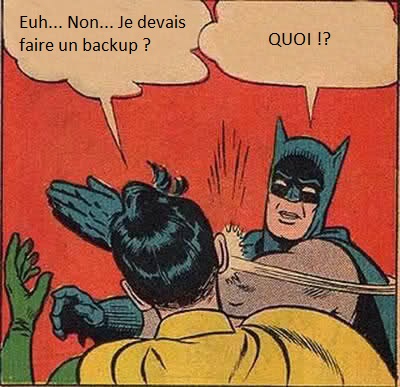
Finally, in my head, I give them a violent slap, because I'm not a violent person, I just turn completely red... but man, at that moment, I feel a deep disappointment, a feeling that is not foreign to me since I've encountered this kind of situation several times.
Sometimes unfortunately, it is impossible to recover Windows or the Mac because the hard drive is completely dead. I know a person who actually lost 15 years of photos, from all those trips with her son since he was a baby, she cried bitterly and I understand her.
How to make a copy (or backup in English) of my data?
1st solution: the manual solution
Well, there is the simple solution, buy an external USB hard drive (USB 3 if possible, it's faster) and make a manual copy of everything onto this hard drive. The problem is that if you don't do it regularly and you're not meticulous, your last backup will date back 3 years, and secondly, an external hard drive can also die one day, and ultimately the backup was useless, but at least you have a chance of having a copy, it is rare to have BOTH your computer dead AND your external USB hard drive die at the same time, but it happens! Moreover, this way of doing things becomes tedious over time.
It is also possible that a fire breaks out in your house, burning your computer and your external USB hard drive. Let's see another more secure solution.
For experienced people who like to get their hands dirty, there are automatic backup software like SyncBackPro or the old-fashioned XXCOPY which allows you to automate the copy to a hard drive.
2nd solution: the NAS (Network Attached Storage) solution
There are small boxes that are actually small computers with the possibility of installing 4 hard drives or more inside.
The best for me is the Synology brand, they are really good and they have a superb interface that is very easy to understand:
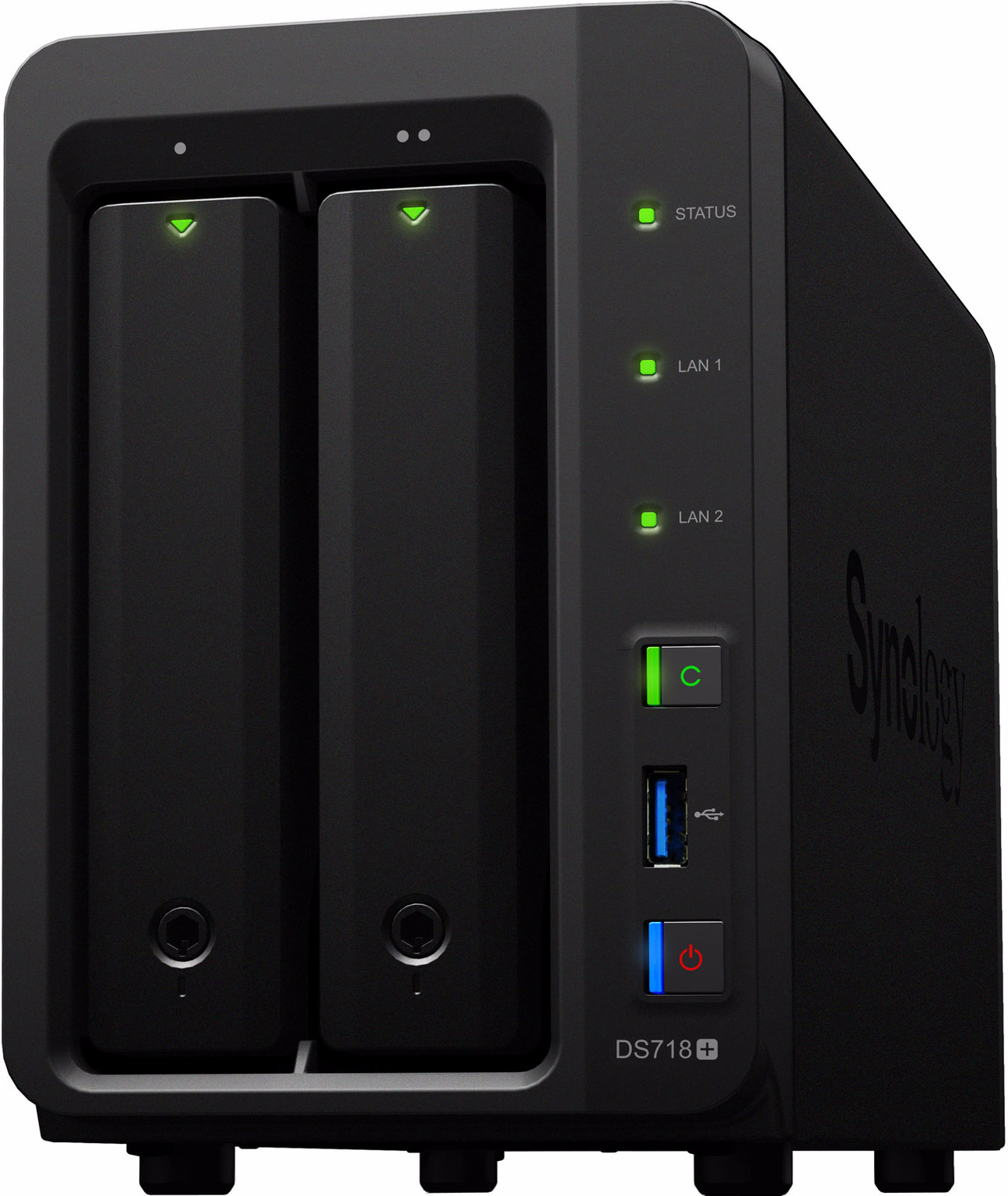
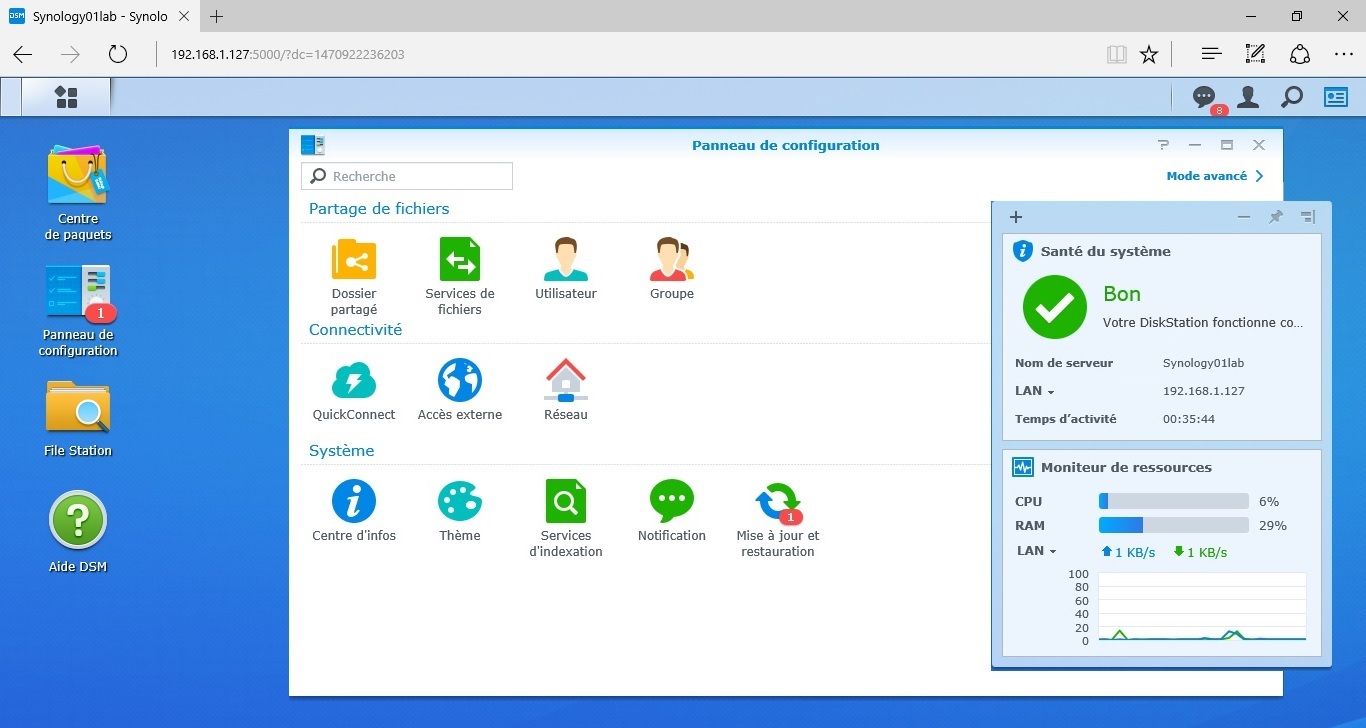
With this small box that has no screen, you can access its interface directly through your web browser and there you will find tons of applications to listen to music, to watch your videos, finally, to manage your photos, very nice applications and more. You will also find an automatic backup application like "Cloud Station Drive".
Cloud Station Drive is a free application provided by Synology, once installed on your PC (or Mac), it will synchronize all your files on your Synology NAS by itself and regularly. Moreover, what is really great about a NAS is that all your files will be accessible anywhere in the world if you want, for example, you are abroad and you absolutely need one of the latest important documents you created on your PC (or Mac), no problem you also have a copy on your Synology NAS accessible from the outside immediately!
Another advantage is that a NAS protects your data by itself, it makes a mirror copy of your data each time (RAID technology), if a hard drive fails, the other installed drives keep a copy of the data in duplicate, it is very rare when a hard drive dies to lose data, you just need to replace the dead hard drive with a new one and the NAS will copy everything by itself onto the new hard drive!
On Amazon, the prices are really interesting, there is a 4-bay version for 4 hard drives and a 2-bay version for 2 hard drives, but if you want to be sure to have enough, I strongly recommend the 4-bay version.
3rd solution: the solution in the CLOUD
Another much more secure solution is to copy your files to the CLOUD. But what is the CLOUD (or cloud in French), well it’s just a server (a big computer) on the Internet running 24 hours a day, 7 days a week, waiting for you to drop your files, your photos, in short everything you have on your computer.
The best solution I found is Amazon's solution called GLACIER, not only is it really secure, you can encrypt all your files with a password, but you can also store your files for not too much money. To give you an idea, I have a backup of 692GB (Gigabyte) on GLACIER and it costs me €3 per month! I copy everything! My photos, my music files, my private documents, the sources of my projects, EVERYTHING! At least, if I have a fire at home, I have a copy of everything on Amazon. The only downside is that uploading files costs almost nothing, however downloading all your files after a fire, that’s going to hurt, because Amazon charges $0.09 per GB (Gigabyte) so to recover my 692GB, I would have to pay around €65 but well, it’s a pain for a good reason.
Amazon's GLACIER solution is therefore to blindly store all your files and just store without ever downloading anything, it's in case a problem arises!
More information here or to create an account: https://aws.amazon.com/fr/glacier/
How to use Amazon Glacier?
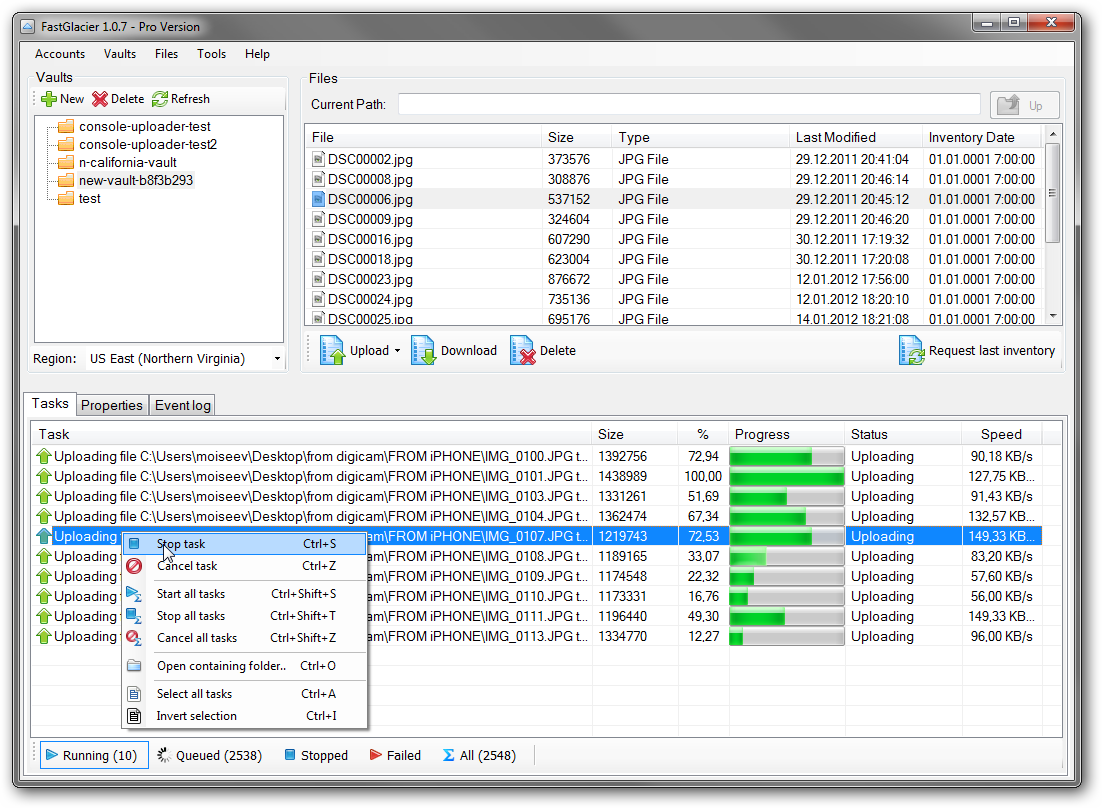
You can use the software Fast Glacier which is not an official Amazon software: https://fastglacier.com but it does its job well.
It’s a free software (there is of course a paid PRO version if you want to use all the options), it allows you to synchronize all your files on your Amazon GLACIER account but always manually.
The winning solution!
The best solution is to have a NAS and make a backup on Amazon GLACIER via a Synology NAS. Synology has a GLACIER application integrated into its interface, it's very easy. You are assured to NEVER lose your data again and not even think about it!
On your PCs and MACs, you install Cloud Station Drive which will automatically synchronize your files on your Synology NAS and your Synology NAS will synchronize everything on Amazon GLACIER, all automatically!
Enjoy the freedom! No longer worry when your PC dies! Be happy to have had a fire or your whole house burning but not your photos or important documents! Well... let's avoid the fire anyway. ;)
Join the conversation
You need an account to comment on this article. Creating one is free and takes under a minute.
No comments yet.